
Core features
Translation
Choose a translation language from the floating mic in Cloud, or use a text-model prompt to translate locally.
Updated 2026-11-11
Translate as you dictate
In Dictāta Cloud, the language/translation button beside the floating microphone chooses the language you want to write in:
- Hover over the floating mic button.
- Click the language/translation icon on its left, highlighted in the screenshot below. If a language is already selected, its short code may appear instead.
- Choose a target language, such as German, French or Spanish. Use the search field to find it quickly.
- Dictate in a supported language and stop recording as usual. Dictāta translates your words into the chosen output language.
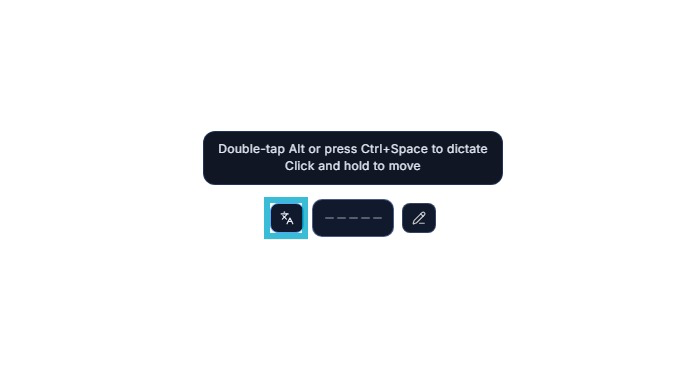
The same button appears in Cloud and Local. In Cloud it chooses the translation destination; in Local it chooses the language you speak. The shortcut reminder in this screenshot shows Windows shortcuts.
You can also right-click the microphone button and open Language to choose the Cloud translation destination.
The output language is the language you select, not necessarily the language you speak in. For example, choosing Spanish in Cloud lets you speak English and insert Spanish text. The button shows the selected code, such as ES, and a “Translating to Spanish” notice appears while you dictate.
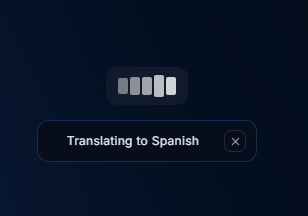
See Floating mic button.
Return to transcription-only mode
In Cloud, open the same language menu and choose No translation to keep the language you speak. This does not choose a particular input language; Cloud Expected languages are separate hints for recognition.
Translation in Local
In Dictāta Local, the same icon and right-click Language menu choose the speech-recognition language. Choose Detect Language for automatic detection or the language you will speak. Selecting Spanish here tells the speech model to expect Spanish; it does not translate English speech into Spanish.
Local does not currently have a built-in translation mode through this button. To translate on your computer, download and select a text processing model, then either:
- Create a short translation prompt in Settings → Basic → AI Actions → Manage prompts, save it and select it from the mic's Prompts menu before dictating. See Translate with a Local prompt.
- Select existing text and ask Local Ask to translate it.
For example, a saved prompt can say: “Translate the transcript into English. Preserve its meaning, names and numbers. Output only the translation.” Keep the instruction short, especially with smaller models, and check the result. Local translation quality depends on the text model and language pair.
See Local language selection. For examples of the Cloud workflow, see Multilingual voice typing.