
Core features
Ask Dictāta
Ask questions, draft replies, and work with selected text on macOS and Windows.
Updated 2026-10-18
Start Ask Dictāta
Ask Dictāta lets you speak a question or instruction without switching to a separate chat app. Select text first if you want Ask to use it, or start without a selection to ask a standalone question.
macOS
- Start: press Control+Option together, then release.
- Finish speaking: press Option+Space, or double-tap Option.
Windows
- Start: double-tap Ctrl, or press Ctrl+Alt+C.
- Finish speaking: press Ctrl+Space, or double-tap Alt.
These are the defaults. Check Settings → Interface if you changed a shortcut or disabled double-tap controls. Double-tap Ctrl is a Windows shortcut; on Mac, use Control+Option.
- Select a message, paragraph, or other text if it should be part of your request.
- Start Ask with your platform shortcut.
- Wait for the recording cue, then speak your instruction.
- Finish recording with the dictation shortcut.
- Read the answer in the Ask window, or check the selected text if you requested a direct edit.
Ask, draft, or rewrite
- Ask a question: with no text selected, say “How can I make a project update easier to scan?”
- Draft a reply: select a message and say “Write a friendly reply and show it in the Ask window.”
- Explain selected text: select a paragraph and say “Explain this in simpler terms.”
- Edit in place: select editable text and say “Make this more concise.” A direct rewrite can replace the selection; request the Ask window when you want to review and copy the result yourself.
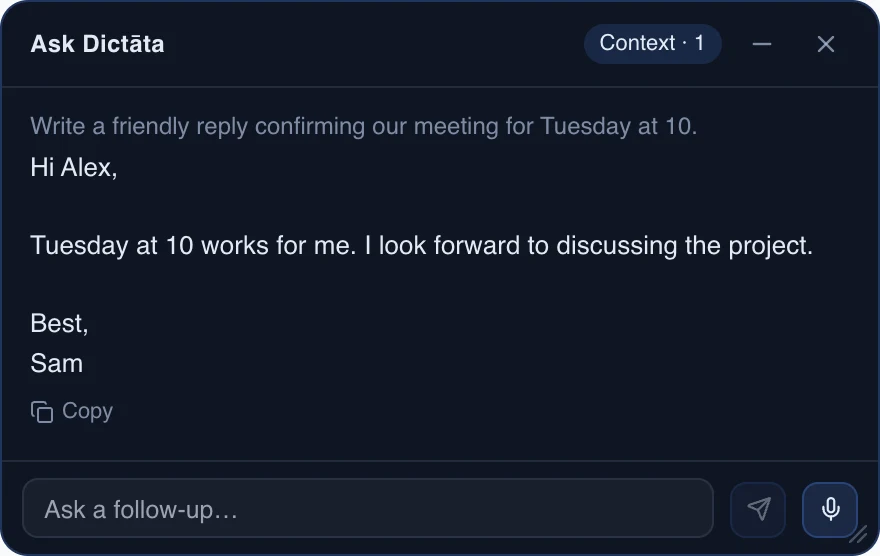
Example desktop interface. The sample conversation contains no personal account data. Select the image to view it full size.
Use Copy on an answer to paste it into another app. The follow-up input also accepts typed questions; you can use the microphone control to speak a follow-up instead.
Continue a conversation
Follow-ups can use the current conversation and text you selected for it. You can select another passage in another app and start Ask again to add relevant context.
Context is temporary. After inactivity, it may expire; use Restore if that option is shown. Closing the Ask window with its X, or pressing Escape while that window has focus, clears the active context. To revisit a saved conversation, open History.
Give Ask useful background
Save your role, writing preferences, or sign-off on the Memory page. Saved facts are included with each Ask request. Regular dictation does not use Memory.
Ask uses your configured AI service. Selected text, your request, relevant conversation context, and saved Memory facts are sent for processing. Review the result before sending or pasting it.
For direct selected-text edits, see Context Actions.