
Dictāta Local
Dictāta Local
Set up offline dictation on Mac and Windows, choose and test local models, and understand privacy and Lifetime access.
Updated 2026-11-11
Dictāta Local recognizes speech and processes text on your computer. After downloading the models and activating access online, you can use it without an internet connection. Local processing does not use your Cloud minutes.
For a product overview, see Local & Offline Dictation.
This guide covers macOS and Windows. For phone setup, see Android on-device mode.
Turn on Local
- Sign in to Dictāta while you have an internet connection.
- Open Settings → Service modes and choose Dictāta Local.
- If you do not have access yet, choose Try free for 14 days or Get Lifetime. Basic and Pro subscriptions also include Local while active.
- Choose Download and turn on to install the speech model. The one-time download is about 453 MB as displayed in the app; the installed model uses about 651 MB.
- Wait for installation to finish. Use your usual dictation shortcut or the floating mic button to dictate into another app.
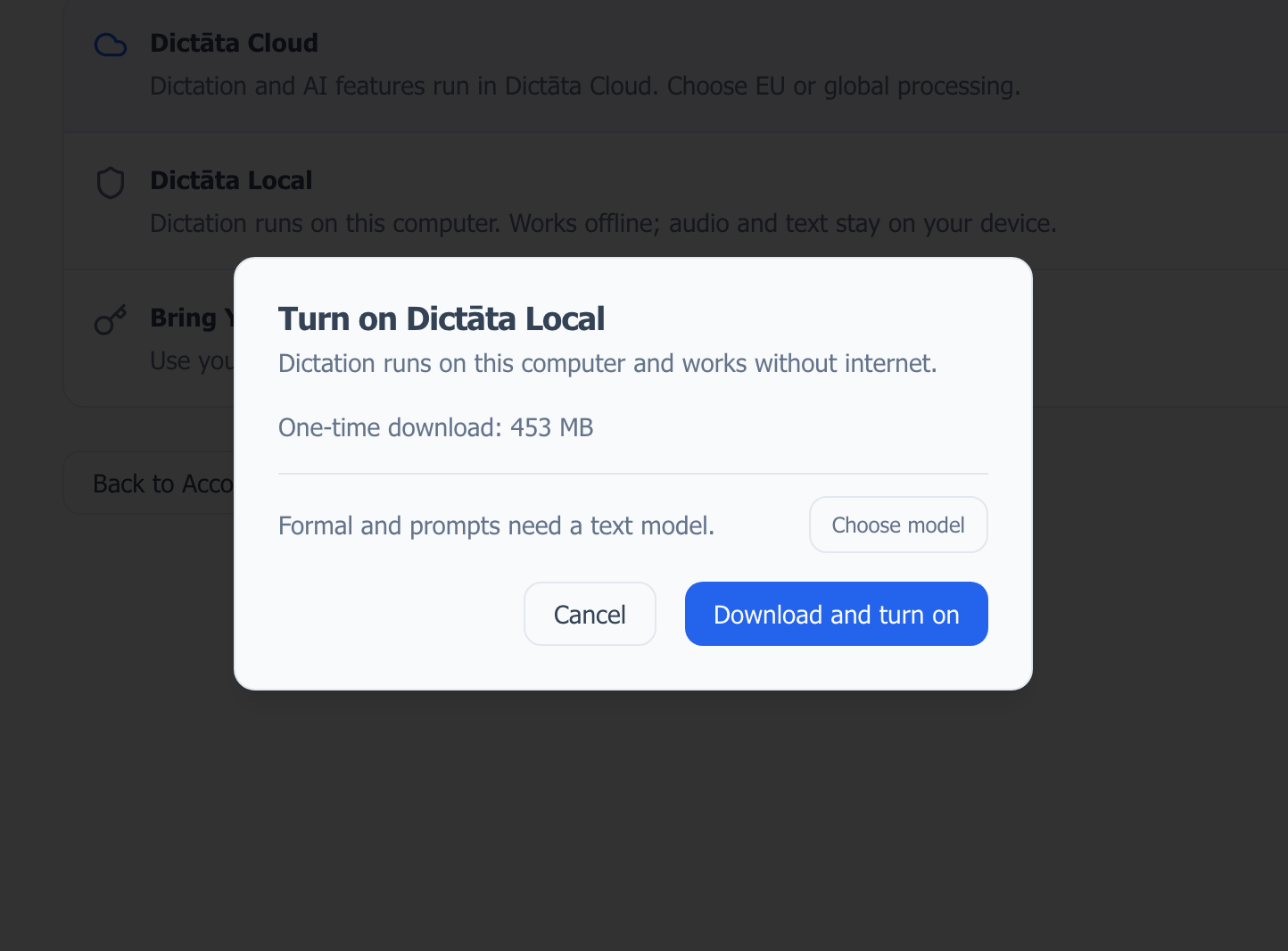
Choose model opens Settings → Models for optional text processing. You do not need a text model for ordinary dictation or Casual style. The Models tab appears when Local is selected.
Speech and text use different models
The speech model, Nemotron 3.5 Streaming, listens while you speak and turns audio into text. Rule-based cleanup then applies punctuation, pause-based paragraph breaks, glossary corrections and voice commands on your computer.
An optional text processing model works on text after recognition. Download one to use Formal style, saved prompts, Ask Dictāta and selected-text actions. It can rewrite, answer questions or translate selected text without sending the request to a cloud model.
With prompts off and Formal off, dictation does not call a text model. Casual also works without one. If a requested dictation rewrite cannot run because the text model is missing or fails, Dictāta pastes the recognized text without rewriting and shows a notice. It does not send the request to Cloud instead.
Choose the language you speak
The language/translation button looks the same in Cloud and Local. In Cloud it selects an output language for translation; in Local it selects the language you speak. Local does not currently have a built-in translation mode through this button.
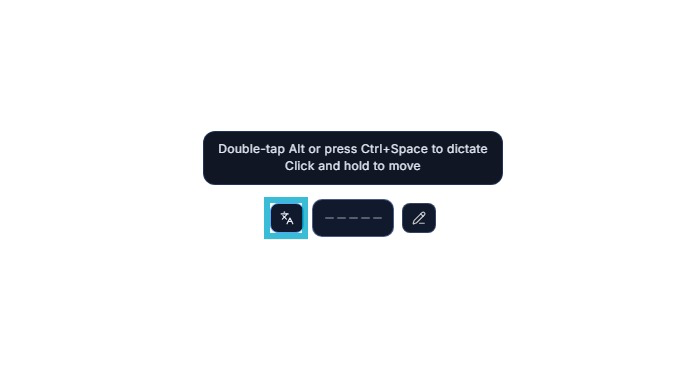
You can change the speech language without opening Settings:
- Hover over the floating microphone button.
- Click the language/translation icon beside the mic. If a language is already selected, the button may show its short code instead.
- Choose Detect Language for automatic detection, or choose the language you will speak. Use the search field to find it quickly.
You can also right-click the microphone button, open Language and choose from the same list. Alternatively, use Settings → Basic → Speech language. These controls change the same Local speech-language setting.
In Local, this chooses the language of your speech, not a translation destination, even though the button uses a language/translation icon. For example, choosing German tells the speech model to expect German; it does not translate English speech into German. Choose Detect Language when switching between supported languages, or select the matching language if detection is unreliable.
Choose a text model
Open Settings → Models. Names below match the model list in the app; the information button beside each name shows more detail.
| Name in Settings | Model | Download | Choosing a model |
|---|---|---|---|
| Compact | Qwen2.5 1.5B Instruct | 1.1 GB | Smallest download; a starting point if storage is limited |
| Small | Qwen3.5 2B | 1.3 GB | Another small option to try on your own requests |
| Medium | Qwen3 4B | 2.5 GB | A larger option to compare if you have room |
| Large | Gemma 4 E2B | 3.3 GB | Largest download; check speed before choosing it for everyday use |
The app recommends 8 GB RAM for each text model. Download size is not the amount of working memory it will need. Other open apps, your processor and available memory affect speed. A larger model is not guaranteed to produce a better answer for every task.
- Click Download beside a model and wait for installation.
- Select its radio button to use it. The active model is marked In use.
- You can keep several models installed and switch between them. Remove model frees its disk space; it does not remove your Lifetime access.
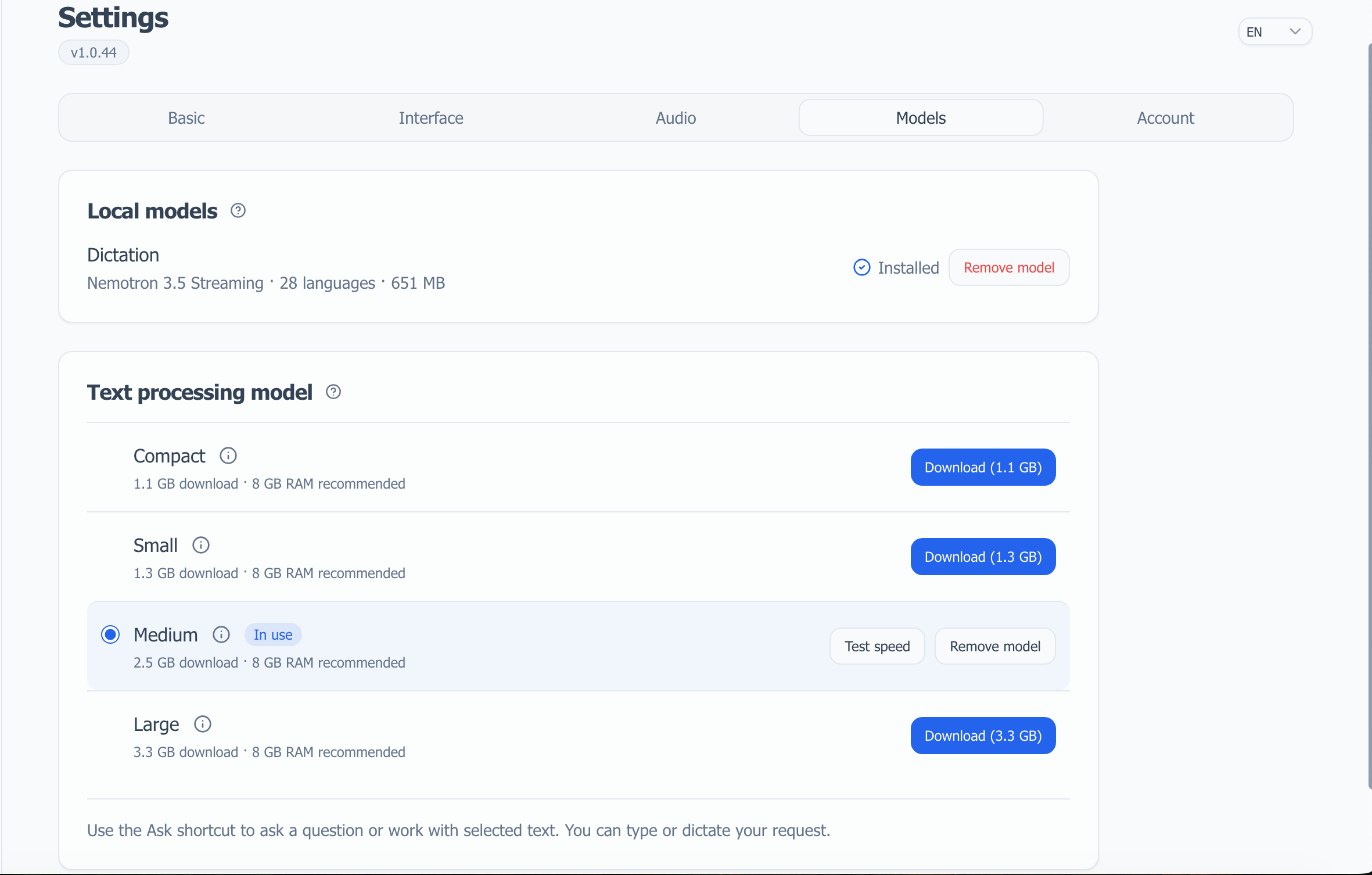
Test a downloaded model
Click Test speed beside an installed text model. It runs one short sample rewrite locally and shows the time and a speed rating for your computer. It uses built-in sample text, not your dictation, and sends nothing to a cloud provider. The displayed rewrite time excludes model loading; your first actual request may take longer.
Use the result to compare installed models on the same computer. It is not a quality score or a promise about the time needed for longer requests. To check quality, try your usual instruction in Ask or apply a saved prompt to your own dictation, then check names, numbers, meaning and language.
Use prompts with Local dictation
Prompts tell the text model how to process your recognized words, for example as an email, a bullet list or a translation. First download and select a text processing model in Settings → Models; the speech model alone is not enough.
Open Settings → Basic → AI Actions, turn on Enable AI Actions, then click Manage prompts. The library includes ready-made prompts; you can also add your own with Add Prompt. Keep instructions short and focused, especially with smaller models.

Select and enable a prompt
- Right-click the floating microphone button to open its menu.
- Open Prompts and choose Default or one of your saved prompts.
- Selecting a prompt in Local turns it on immediately; there is no separate switch to enable in that menu. The Prompts row shows the selected name.
- Dictate as usual. After speech recognition, your selected text model applies the prompt locally and Dictāta inserts the result.
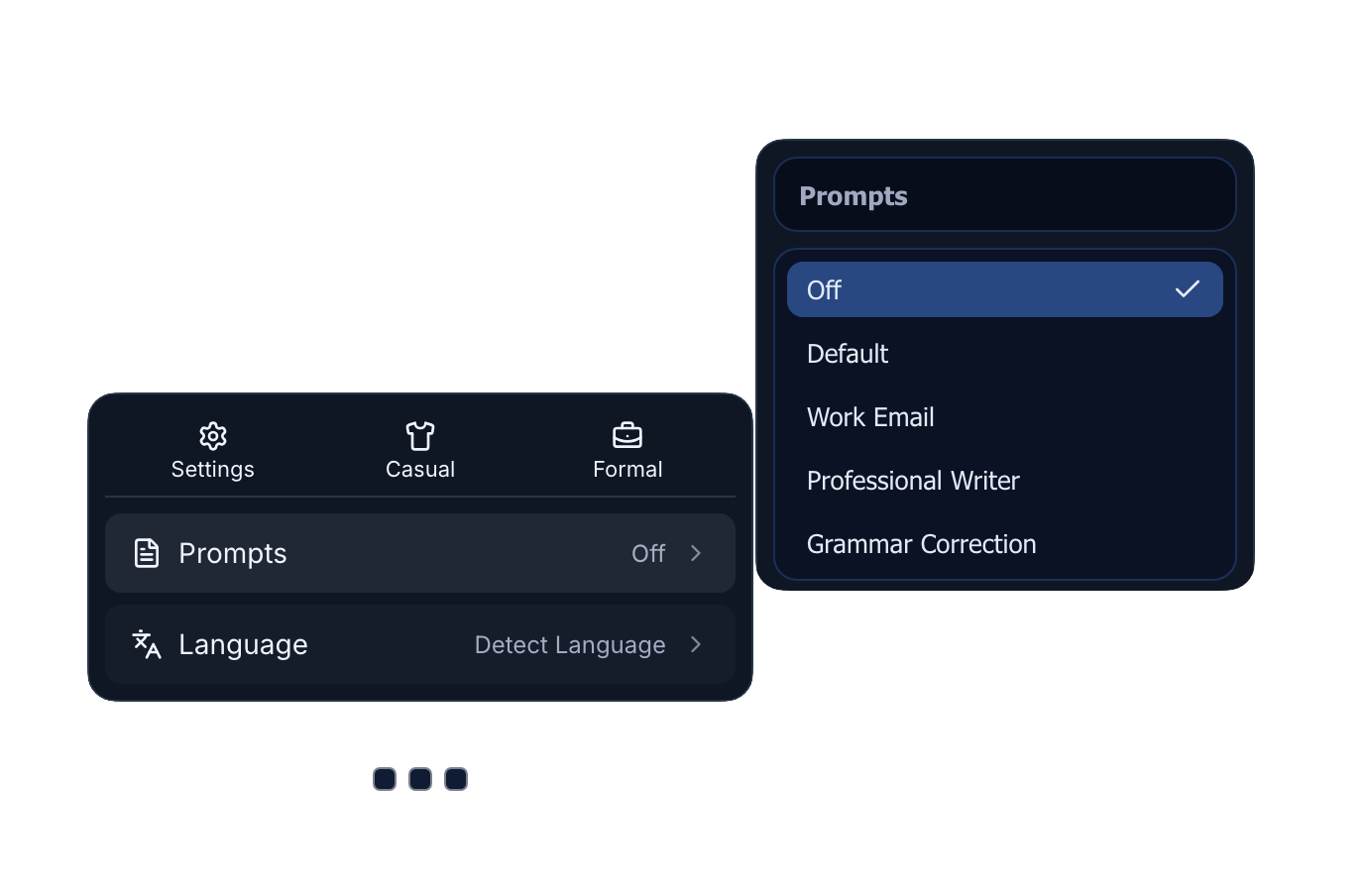
Off is selected in this screenshot. Click Default or a saved prompt to enable it; choose Off to stop applying prompts.
Choose the prompt before recording. Default uses the app's editable default instruction; it does not mean prompts are off.
Turn prompts off
Right-click the mic, open Prompts and choose Off. This skips the saved-prompt processing step. To use ordinary rule-based dictation without a text model, also leave Formal off; Casual does not need a text model.
Prompts and styles are alternative choices: enabling a prompt clears the selected style, and choosing Casual or Formal turns prompts off.
Create or edit a prompt
In Settings → Basic → AI Actions, click Manage prompts to open the Prompt Library. Try the ready-made Work Email, Professional Writer or Grammar Correction prompts, edit one, or click Add Prompt to create your own. Select it in the mic menu before dictating. See Prompts.
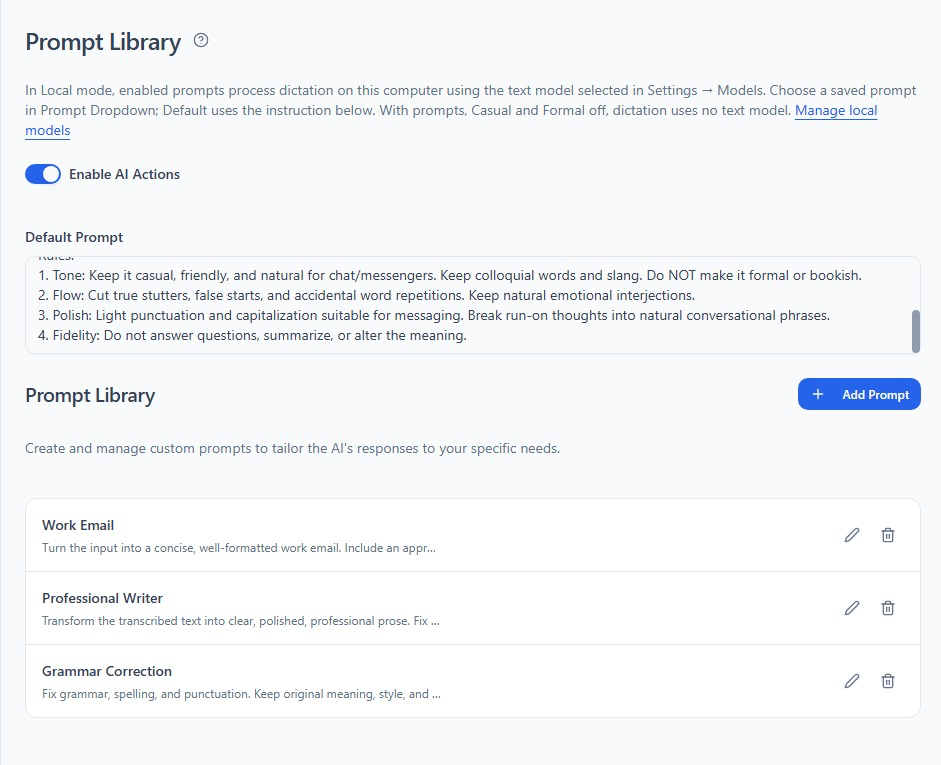
Start with a short, specific instruction, such as “Format this as a bullet list. Keep all names and numbers. Keep the language I spoke.” Review the result; local text models can still change meaning or omit details. For on-device prompt guidelines, recommended models, and an all-in-one template, see Best practices for local prompts.
Translate with a prompt
Local's language button does not translate, but an enabled text-model prompt can translate your recognized words. Add a short prompt such as “Translate the transcript into English. Preserve its meaning, names and numbers. Output only the translation.” Select it before dictating and keep the speech language on Detect Language or the language you speak. Review the output, especially with a small model. See Translate with a Local prompt.
What works in Local
| Feature | Local behavior |
|---|---|
| Dictation and Casual style | Use the speech model and rule-based cleanup; no text model needed |
| Glossary and Voice Commands | Work on the device; Smart Glossary terms also help guide speech recognition |
| Formal and saved prompts | Require an installed, selected text model |
| Ask Dictāta and selected-text actions | Require a text model; questions, replies and rewrites run locally |
| Translation of selected text | Uses the text model; review the result, especially with smaller models |
| Translation of dictated text | No built-in translation mode through the language button; use a saved translation prompt with a text model, or Cloud for its built-in workflow |
| File transcription | Uses the local speech model; no Cloud minutes used |
| History and regeneration | Stay on this computer; regeneration needs the saved recording and installed speech model |
| Memory for Ask | Cloud feature; saved Memory facts are not included in Local requests |
| Sync across devices | Local history is excluded; existing sync settings for shared lists are separate |
Ask and Context
Open Ask Dictāta with your usual shortcut. Type or dictate a question, or select text in another app first. Answers appear in the Ask window. After reviewing an answer, click Insert to send it to the original app at the cursor or selection where you started Ask, without copying and pasting. Keep that editable destination in place while you review or request changes. If Insert is unavailable, use Copy or start Ask from the text field you want to write in. See Insert an answer.
The Context switch is on by default. With it on, the model can use up to five recent completed question-and-answer pairs and their attached selections from this conversation. Older pairs are dropped first if they do not fit the model's context limit. With Context off, it receives only the new request and any newly attached selection. This switch does not enable Memory or synchronization.
You can reopen saved Local Ask results from recent conversations or History and continue them. These entries stay on this device.
Privacy and sync
Your audio, dictated text and Local AI requests are processed on this computer. Local does not send them to speech or text providers, and usage analytics are blocked.
Local is not a switch that disconnects the entire app from the internet. Allowed service connections include sign-in and account or license checks, billing you open, model downloads, interface fonts, version checks and feedback you choose to send. If you submit feedback, check what you include in it.
While Local is selected, the cross-device sync controls in Account are hidden. This does not turn off an existing sync setting for shared lists.
History created by local processing remains on this device even after you switch back to Cloud and enable history sync. This includes local dictations, Ask results and locally transcribed files. Incoming sync changes do not overwrite or delete those entries. Audio recordings are never synced in any mode.
This permanent exclusion applies to locally processed history. Local uses the same shared lists, such as Glossary and Voice Commands, as the other modes. If you previously enabled sync, those lists can still sync while the computer is online. If you want them to stay only on this device too, turn sync off in Settings → Account before switching to Local. See Sync across devices.
Access, Lifetime and offline use
| Access | What it includes |
|---|---|
| Local trial | 14 days; start it online, then use downloaded models offline within the trial period |
| Basic or Pro subscription | Local while the subscription is active; no separate Local purchase needed |
| Local Lifetime | A one-time purchase for Local without a recurring subscription |
Lifetime does not include paid Cloud allowances. If you have Lifetime without a paid Cloud subscription, your account retains the Free Cloud plan, with 30 minutes per month. If you cancel a Cloud subscription and also own Lifetime, Local remains available. See Account and subscription and the current pricing.
The license belongs to your Dictāta account. After purchase, access updates through that account; you do not need to enter a license key. A new computer or a fresh installation needs an online sign-in, license activation and model download before offline use.
Once activated, Lifetime does not expire just because the computer is offline. Trial and subscription access still have an expiry date; they do not become Lifetime when used offline. A refunded or revoked license can be removed when the app next successfully checks it online.
Before traveling, download the models you need and make sure Local works. Stay signed in: if you explicitly sign out, you need an internet connection to sign in again.
Languages and hardware
The desktop speech model supports 28 languages: Arabic, Bulgarian, Chinese, Croatian, Czech, Danish, Dutch, English, Estonian, Finnish, French, German, Hindi, Hungarian, Italian, Japanese, Korean, Norwegian, Polish, Portuguese, Romanian, Russian, Slovak, Spanish, Swedish, Turkish, Ukrainian and Vietnamese.
Use the language button or right-click menu on the floating mic to choose automatic detection or the language you speak. Settings → Basic → Speech language offers the same choice. Choosing a mismatched speech language can produce an empty result. See Supported languages.
The speech model runs on the CPU; no dedicated GPU is required. It needs at least 6 GB RAM, with 8 GB recommended. Allow about 1.2 GB of free disk space for downloading and unpacking speech files, plus space for any text models and saved recordings. Recognition and rewrite speed depend on your computer and what else is running.
Troubleshooting
- Download stops: check your connection and free disk space. A partial download can be continued with Resume download, including after an app restart. If verification fails, download the model again.
- Dictation asks for a model: open Settings → Models and install the speech model before recording.
- Formal, prompts or Ask need a model: download and select a text model. Downloading only the speech model does not enable these features.
- The first request is slow: loading a model takes time. Compare text models with Test speed, close memory-heavy apps or try a smaller model.
- Speech produces no text: check microphone permissions, input volume and Speech language. Try automatic detection if the chosen language does not match your speech.
- A rewrite changes meaning: try another model or a simpler prompt, or turn Formal and prompts off to keep rule-based dictation. Always review generated text before using it.
- Local entries do not appear on another device: this is expected. Local history is excluded from sync, including after returning to Cloud.
To switch back, open Settings → Service modes and choose Cloud or Bring Your Own Key. Downloaded models stay on disk until you remove them. Switching modes does not turn a locally processed history entry into a synced one.