
Dictāta: Voice-to-Text for Your Entire Computer
 By Dictāta Team
Table of Contents
6
Table of Contents
6Most voice-to-text tools lock you into one app. Dictāta works everywhere.
Dictate into Any App
Email, Slack, Word, code editors, notes — if you can click into a text field, you can dictate into it. No copy-pasting, no app-switching, no limitations.
Press your hotkey, speak naturally, and your words appear exactly where your cursor is.
How It Works

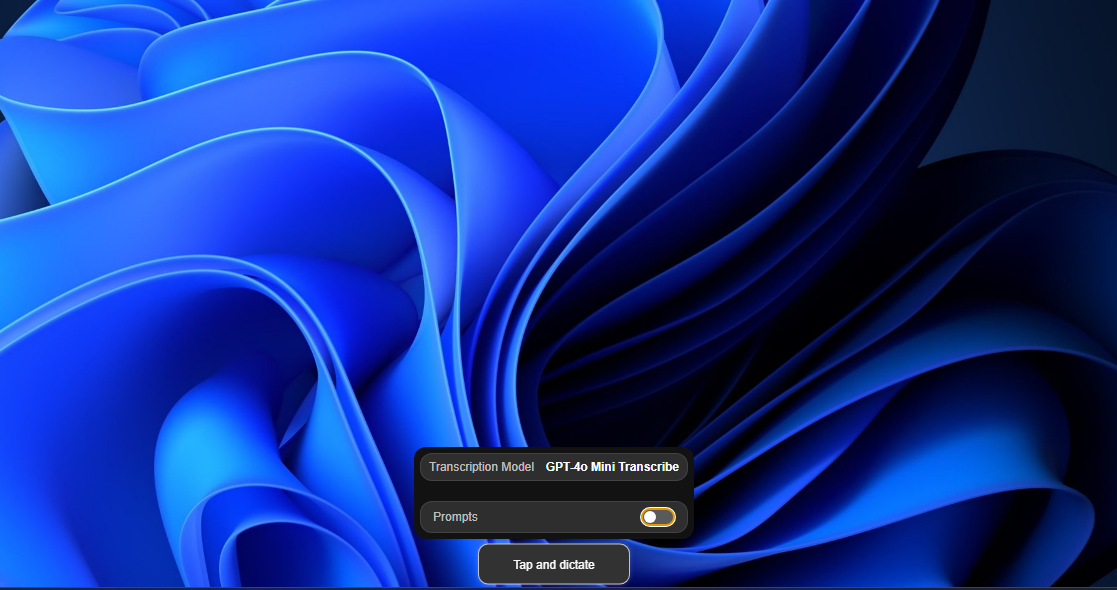
A small floating button sits at the bottom of your screen and follows you wherever you work.
Once you click the hotkey and start to speak, real-time audio waves confirm the app is listening.
When you're done, you click the hotkey again, and the text appears instantly at the cursor, cleaned up and ready to use.
One hotkey controls everything: Alt twice on Windows, Option twice on Mac. You can also drag the button out of the way or hide it completely if you prefer a clean screen.
AI Actions: Transform Text with Your Voice
Dictāta doesn't just transcribe — it lets you rewrite and reshape text without touching the keyboard.
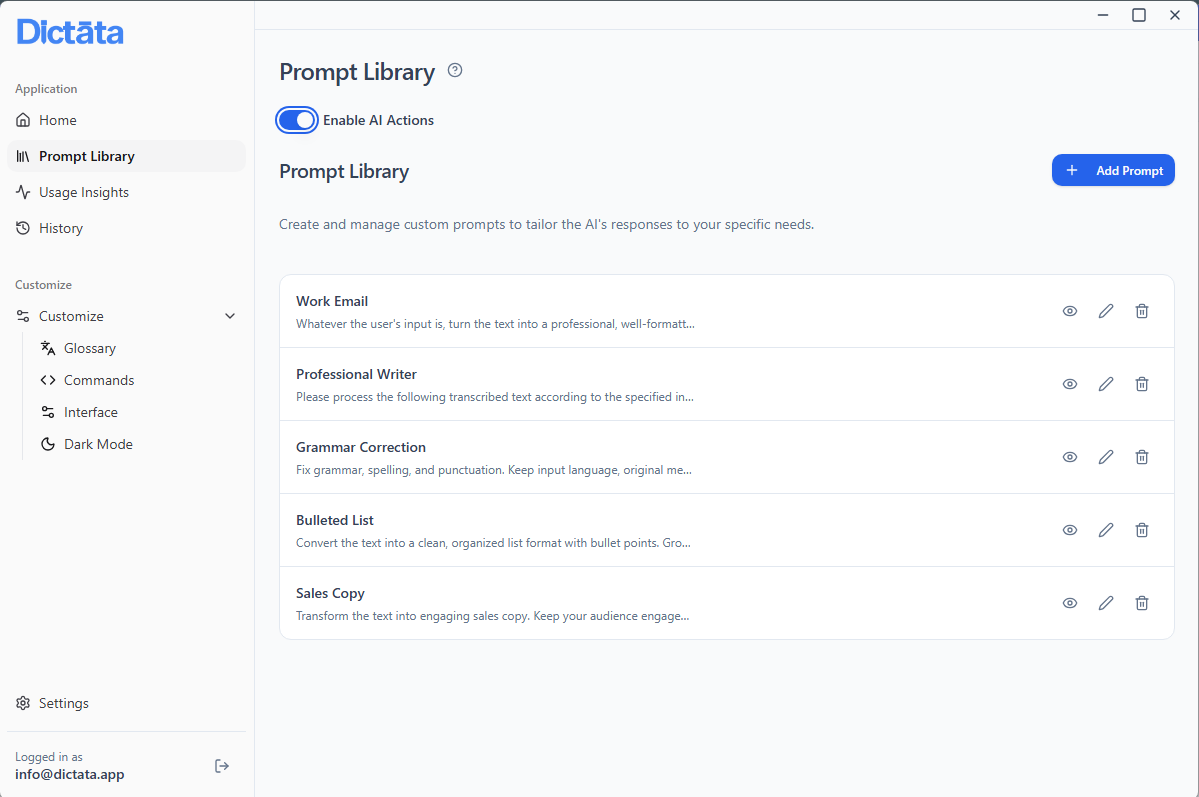
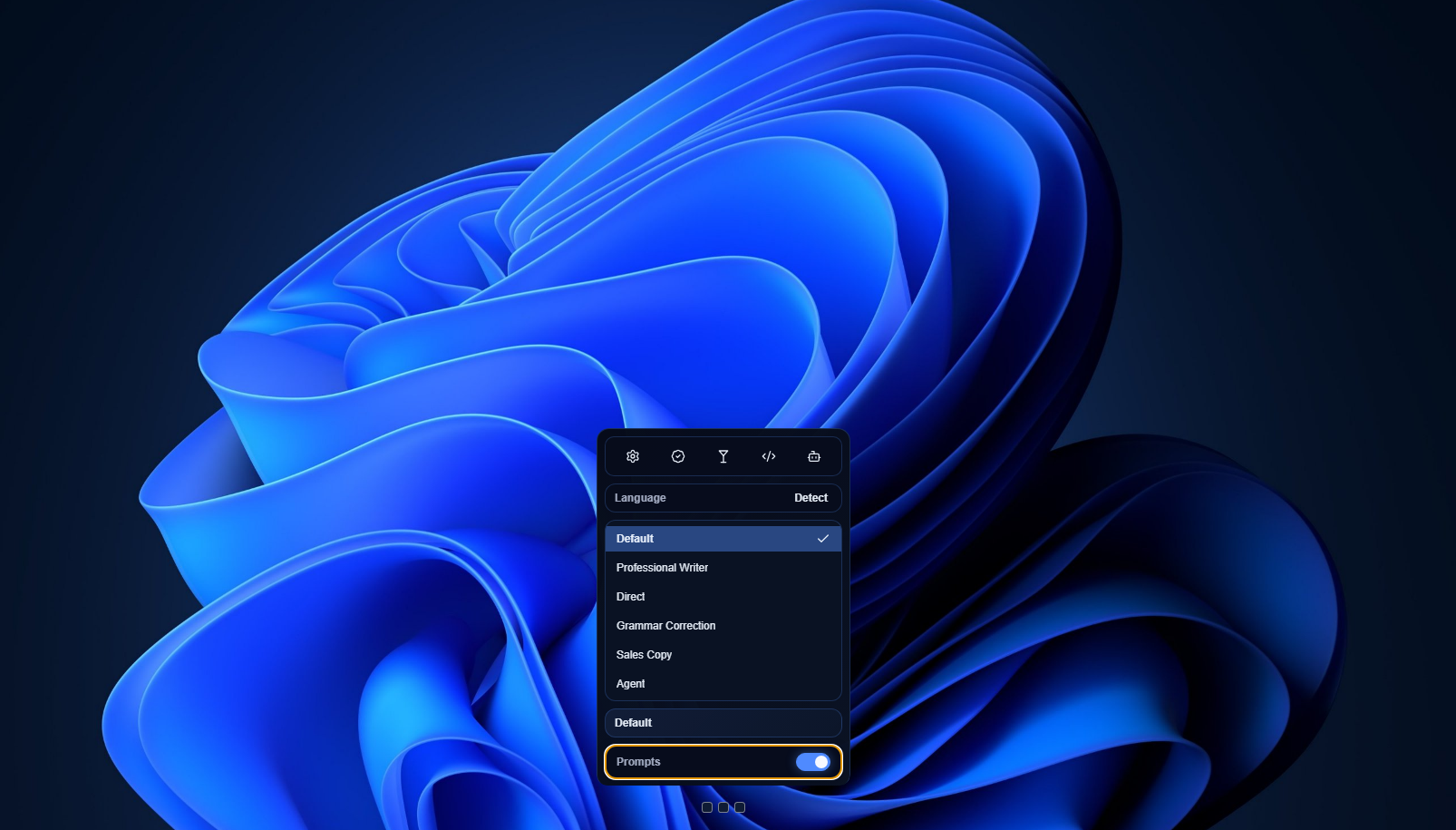
You can save your most-used prompts directly in Dictāta's Prompt Library — things like "make this more concise," "fix the tone," or "turn this into bullet points." Then activate them with a single hotkey, right as you dictate.
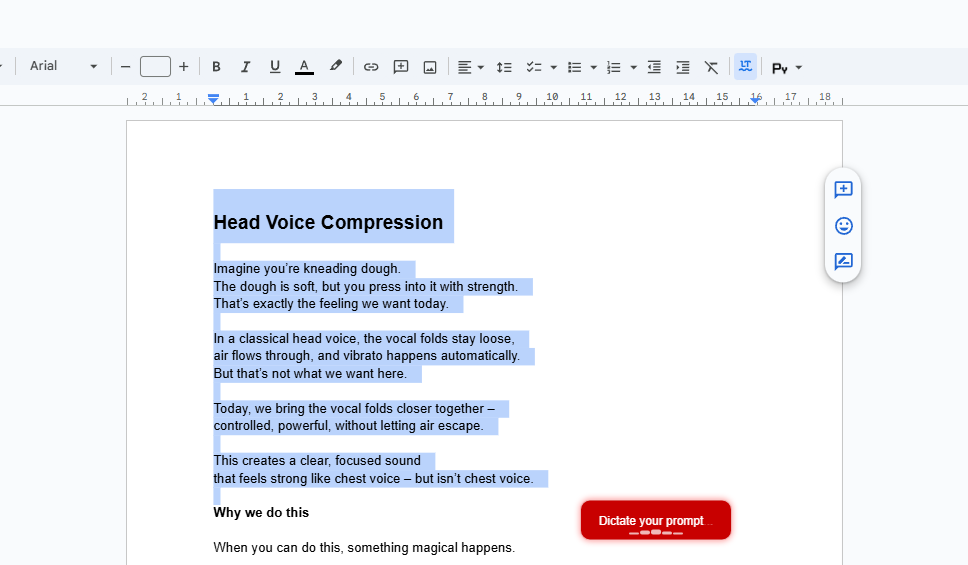
Already have text you want to improve? Highlight it, press Alt + R (or Control + Option on Mac), and tell Dictāta what to do with it. It edits in place, no extra windows needed.
Who Uses Dictāta
Dictāta tends to click for people who write a lot and feel like the keyboard is slowing them down:
- Writers and knowledge workers who think faster than they type
- Professionals working through a heavy email load
- Developers who want to dictate comments and documentation
- Students capturing notes during fast-moving lectures
- Anyone who's been stuck using Google Docs just to get voice input
Get Started in Seconds
On macOS:
- Download Dictāta
- Press
Option twice - Speak
- Press
Option twiceagain — your text appears at the cursor
On Windows:
- Download Dictāta
- Press
Alt twice - Speak
- Press
Alt twiceagain — your text appears at the cursor
That's it. No setup wizard, no account required to get started.
Dictāta — your voice, everywhere.
Related Reading
- How to Write Faster on a Keyboard — the case for voice over typing
- Beyond Auto-Correct: Custom Prompt Styles — turn rambling speech into polished writing
- Top 6 Privacy-First AI Dictation Apps in 2026 — see how Dictāta compares
- Mac Dictation Alternative
- Windows Dictation Alternative